How do I update my subscription in Happ?
Update methods
- Quick update
- Force update
Update
Open the Happ app
Launch the app on your device
Tap the update button
Find and tap the subscription update icon in the app's main menu
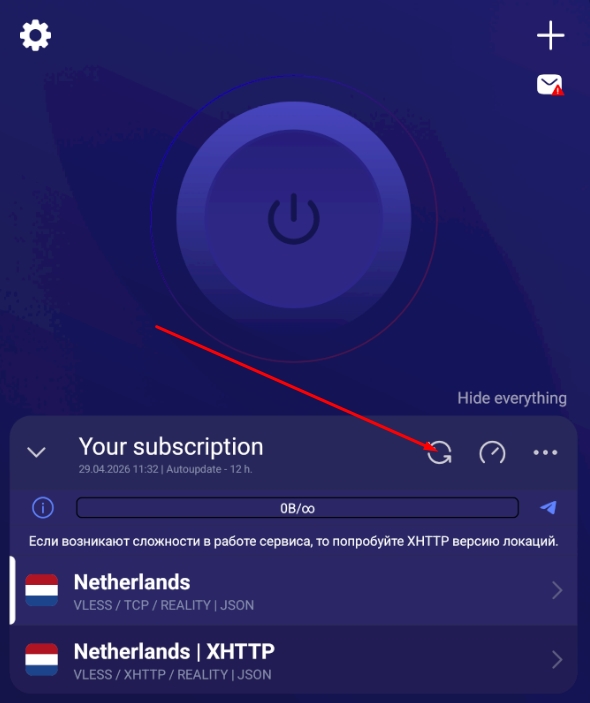
Done!
Subscription updated successfully. Make sure the right location is selected and you can keep using the app
If a quick update didn't fix your problem, use the full subscription reinstall on the second tab
Reinstalling the subscription
When to use this method?
Use the full update if a quick update didn't work or if you're still experiencing subscription issues
Delete your current subscription
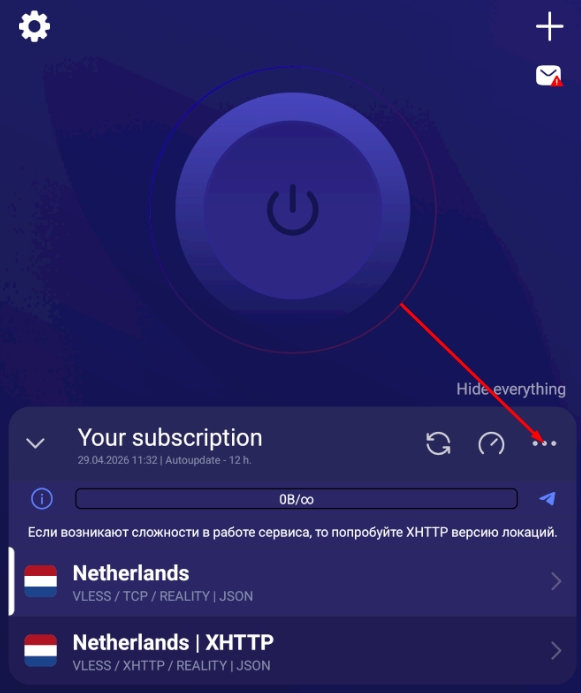
Open the Happ app and tap the three dots icon next to your subscription
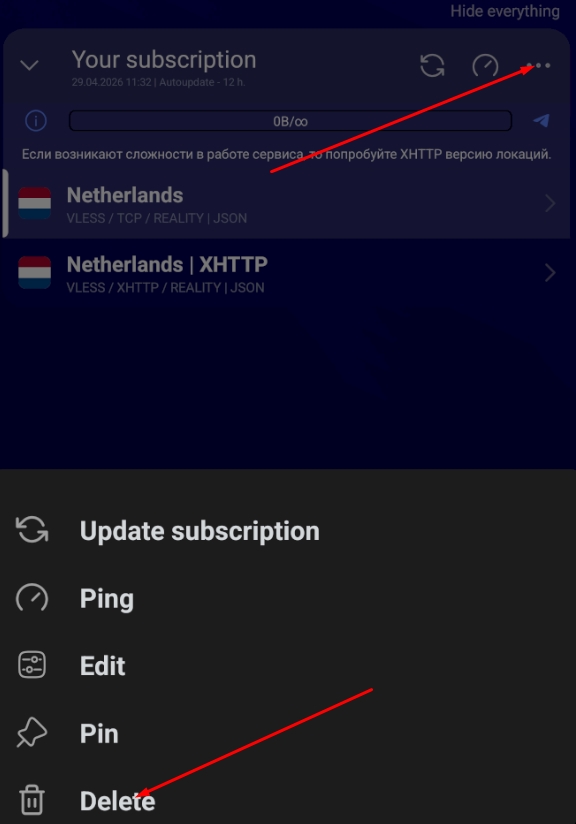
Confirm deletion
In the menu that opens, choose "Delete" to remove the subscription from the app
Copy your subscription link
Open your account in the bot or on the website
In your account
- Open the "Subscription" section
- Find your subscription link
- Tap "Copy subscription"
Add the subscription again
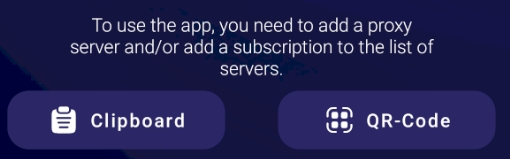
Go back to the Happ app, tap +, then choose "Paste from clipboard"
All done!
Subscription reinstalled successfully. Make sure the right location is selected and you can keep working
Common issues
Subscription won't update
Check that your internet connection is stable and try again. If the problem persists, use the full subscription update
Error adding the subscription
Make sure you copied the full subscription link from your account. The link should start with https://
Subscription doesn't work after the update
Check that the right location is selected in the app. Try switching to another server and back
Additional recommendations
Performance tip
For stable app performance, we recommend enabling the preferred IP type — IPv6&IPv4
How do I enable IPv6 in Happ? →